
SETTING
YOUR PARENTAL LOCK FOR THE FIRST TIME |
||
Press
the
MENU
button on your remote control. The
Main Menu
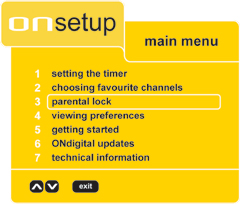
screen will be displayed. Press the DOWN arrow on your remote control until Option 3 Parental Lock is highlighted. Press the SELECT button. |
 |
|
Press
the
DOWN
arrow on your remote control until
Option 1 Enter
New Parental Code
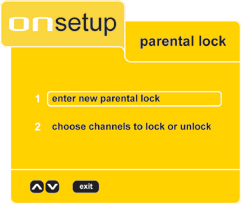
is highlighted Press the SELECT button. |
 |
|
Select a 4-digit code (not
0000), using the number buttons. As you enter the code it will be displayed on the screen. If you enter an incorrect number, using the LEFT arrow button to move back one space and make an amendment. Please keep a note of your parental code in a safe place for future reference. Press the SELECT button. |
 |
|
If for
some reason your code is not accepted, the entry will be cleared
and you will be prompted to enter another code. Press the RED button to return to the previous Parental Lock Menu or press EXIT to return to normal TV viewing. |
||
Once a code has been entered, you can
change the parental code at any time. In Order to do this, you will
need to enter the current code before the new code can be entered. Press the MENU button on your remote control. The Main Menu screen will be displayed. Press the DOWN arrow on your remote control until Option 3 Parental Lock is highlighted. Press the SELECT button. |
|
|
Press the
DOWN
arrow on your remote control until
Option 1 Enter
New Parental Code
is highlighted Press the SELECT button. |
|
|
Enter your current code
and then press
SELECT
button on your remote control. Asterisks will be displayed as the
code is entered. If necessary use the LEFT
button to correct any mistakes. If this code is correct you will be asked to enter a new code. Enetr your new 4-digit code (not 0000) and then press the SELECT button to confrim. |
|
|
If you
entered a wrong code at any stage, an on-screen display will inform
you what to do. Press the RED button to return to the previous parental lock menu or press EXIT to return to normal viewing. |
||
SELECTING
CHANNELS TO BE LOCKED |
||
Press the
MENU
button on your remote control. The
Main Menu
screen will be displayed. Press the DOWN arrow on your remote control until Option 3 Parental Lock is highlighted. Press the SELECT button. |
|
|
Enter your parental lock and press the
SELECT
button on your remote control. Press the DOWN arrow on your remote control until Option 2 Choose channels to lock or unlock is highlighted. |
 |
|
Press the UP
or DOWN
buttons on your remote control to highlight the channel you want to
lock. Press SELECT
on your remote control. A padlock symbol will appear alongside the
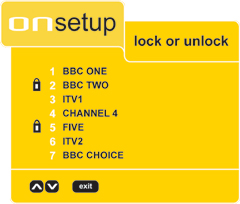
selcted channel to confirm your choice. Repeat this step until you have identified all the channels you want to lock. |
 |
|
Press the
GREEN
button on your remote control to lock (closed padlock) or to unlock(open
padlock) channels. 'Locks are closed' or 'Locks are open' will appear
at the top of the screen. |
||
